Emails from the ticketing system omit full threads for client data security. Users can adjust conversation settings in Microsoft Outlook (New and Classic), Outlook Web, or Gmail to show grouped messages to make viewing email threads easier. Instructions include navigating to Settings Mail Layout or View options to toggle conversation views and arrange message order. Additional resources link to Microsoft and Google support pages.
Microsoft/Outlook Conversation Settings:
For the security of our clients, you will notice that emails from our ticketing system do not contain the entire thread. We have done this for the safety of our client's sensitive data. However, you may adjust the conversation settings in your email box to show the entire conversation.
Microsoft/Outlook Conversation Settings:
New Outlook
- At the top of the page, select Settings
> Mail >Layout.
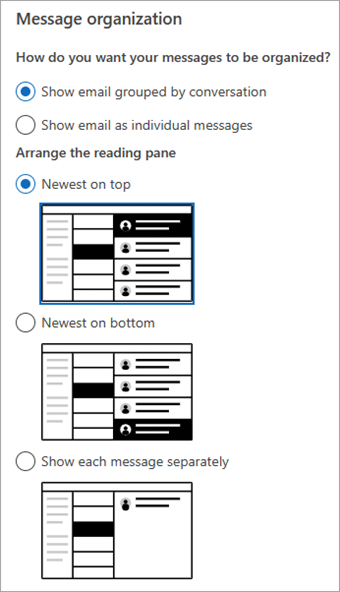
- Under Message organization, choose either of the options depending on whether you want to show email grouped by conversation or as individual message.
-
If you select Show email grouped by conversation, under Arrange the reading pane, select either of the options:
Newest on top, Newest on bottom, or Show each message separately.
-
Classic Outlook
-
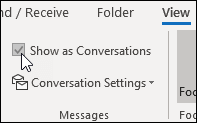
From any mail folder, such as your inbox, select View > Show as Conversations to toggle Conversation view on or off.
-
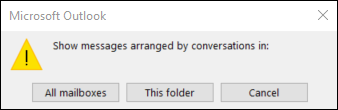
Select All mailboxes or This folder.
- Conversations that include multiple messages are identified in the message list by a triangular expand/collapse icon
. Select the icon
- Within each Conversation, messages are sorted with the newest message on top. You cannot change this sort order.
- When you receive a new message that’s part of a Conversation, the whole Conversation moves to the top of your message list.
- Any Conversation that includes unread messages has a bold subject and the count of the unread messages appears next to the subject. When you expand the Conversation, any unread messages have a bold heading.
Web
- At the top of the page, select Settings
- Under Message organization, choose either of the options depending on whether you want to show email grouped by conversation or as individual message.
-
If you select Show email grouped by conversation, under Arrange the reading pane, select either of the options:
Newest on top, or Newest on bottom, or Show each message separately.
-
Gmail Conversation Settings:
- At the top right, click Settings
See all settings.
- Scroll to the "Conversation View" section.
- Select Conversation view on or Conversation view off.
- At the bottom, click Save Changes.
 See all settings.
Additional Resources: