The article provides step-by-step instructions for accessing Pay Statements, W2, and Form 1095-C on both desktop and mobile platforms. Users navigate through menu icons to find these documents under "My Info" or "My HR," with options to preview, download PDFs, or print copies. Historical data and past years' forms can be accessed via filters or toggles.
Desktop
Pay Statements
1. From your dashboard, click the menu icon in the upper left-hand corner.
2. Navigate to: My Info > My Pay > Pay History
3. The 3 most recent Pay Statements will appear by default.
Note: Toggle to the Historical button to review additional Pay Statements by a date range.
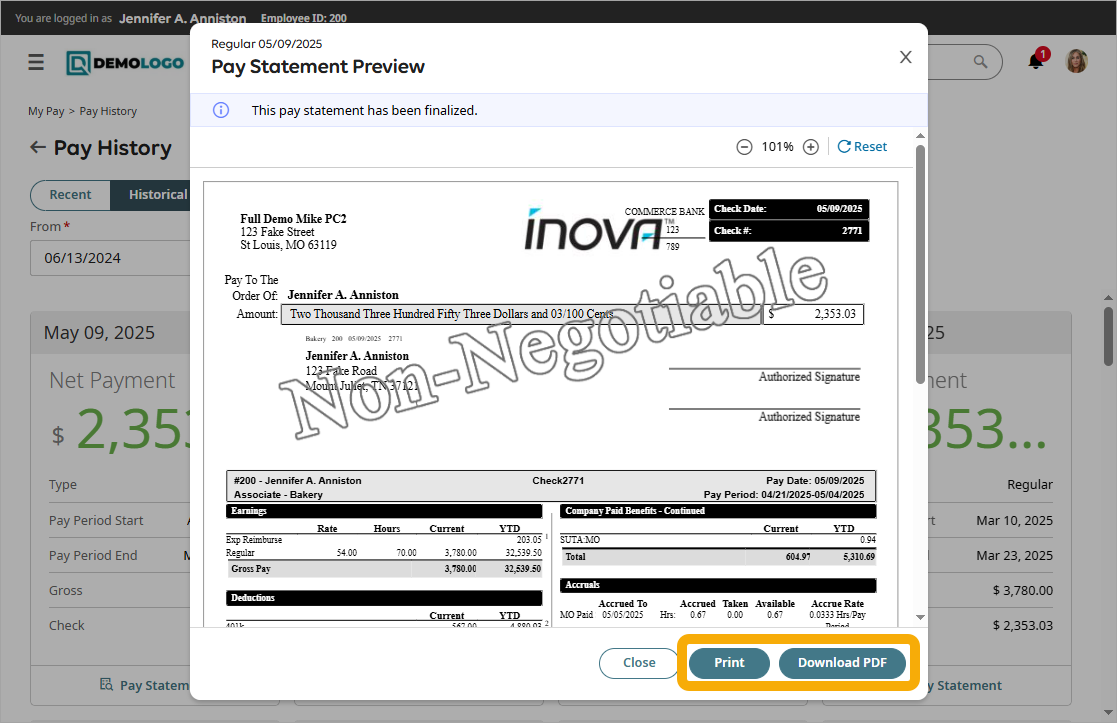
4. Click the Pay Statement button to view the full pay statement in a pop-up window.
5. Near the bottom, click the Print or Download PDF buttons to export a copy.
W2
1. Select the menu icon in the upper left-hand corner.
2. Navigate to: My Info > My Pay > Forms > W2
3. Select the preview icon next to the year’s W2 you want to preview.
4. A pop-up window will display your W2, click the Download PDF to export a copy.
Form 1095-C
1. Select the menu icon in the upper left-hand corner.
2. Navigate to: My HR > Forms > Government Forms > 1095-C
3. By default, you will be routed to the current year’s 1095-C, the system may display “No Data” if the 1095s have not been completed for the current year. To review past years, click on the “Selected Year” filter on the right. Select the year from the dropdown, then click Apply
Click the pencil icon to review the 1095-C for the year selected.
A preview of the 1095-C will appear, click the button on the right to download a copy.
Mobile
Pay Statements
1. From your dashboard, click the menu icon in the upper left-hand corner.
2. Navigate to: My Info > My Pay > Pay History
3. The 3 most recent Pay Statements will appear by default.
Note: Toggle to the Historical button to review additional Pay Statements by a date range.
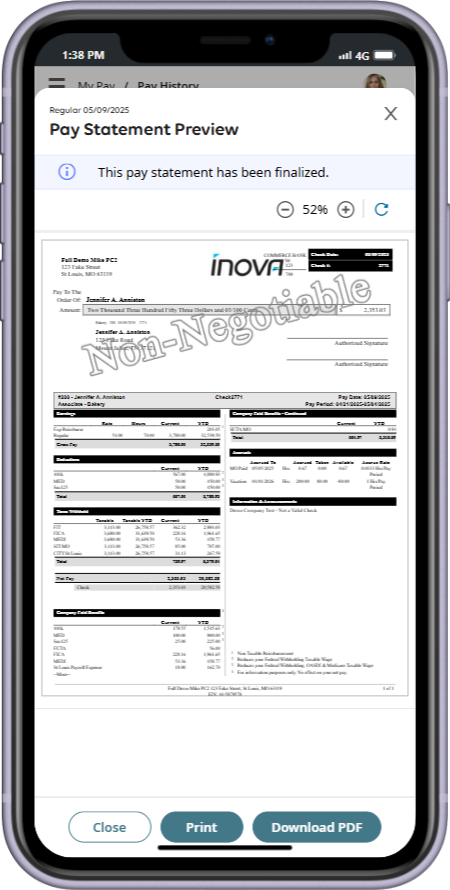
4. Click the Pay Statement button to view the full pay statement in a pop-up window.
5. Near the bottom, click the Print or Download PDF buttons to export a copy.
W2
1. Select the menu icon in the upper left-hand corner.
2. Navigate to: My Info > My Pay > Forms > W2
3. Select the preview icon next to the year’s W2 you want to preview.
4. A pop-up window will display your W2, click the Download PDF to export a copy.
Form 1095-C
1. Select the menu icon in the upper left-hand corner.
2. Navigate to: My HR > Forms > Government Forms > 1095-C
3. By default, you will be routed to the current year’s 1095-C, the system may display “No Data” if the 1095s have not been completed for the current year. To review past years, click on the filter icon in upper right-hand corner. Select the year from the dropdown, then click Apply
4. Click the pencil icon to review the 1095-C for the year selected.
5. A preview of the 1095-C will appear, click the Download PDF button on the right to download a copy.